Last Updated on: 22nd February 2026, 06:42 pm
If your PC feels slower than it used to, you’re not alone. Many Windows users notice gradual performance drop. And sometimes the reason is hiding in plain sight.
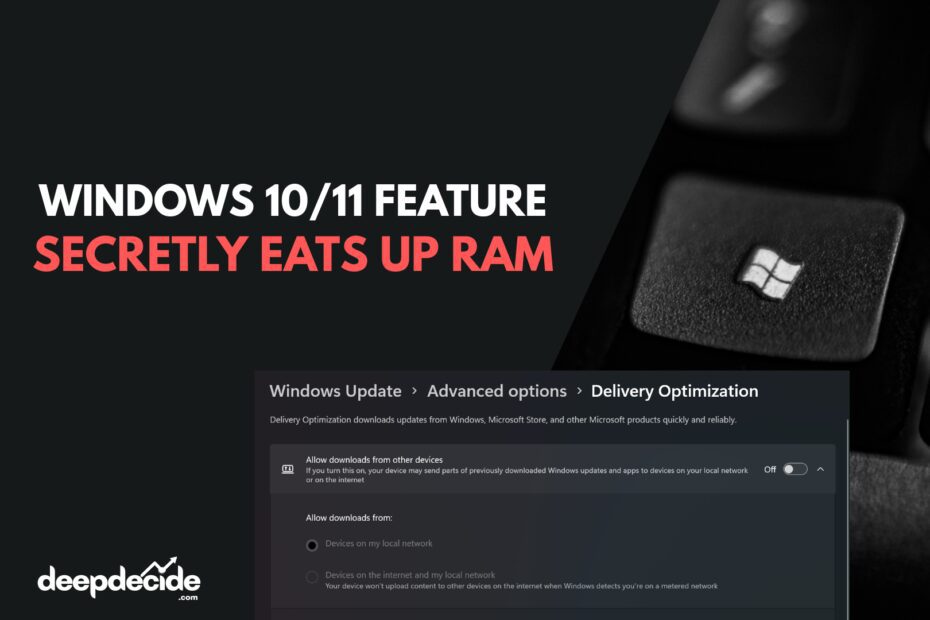
How to Disable Delivery Optimization
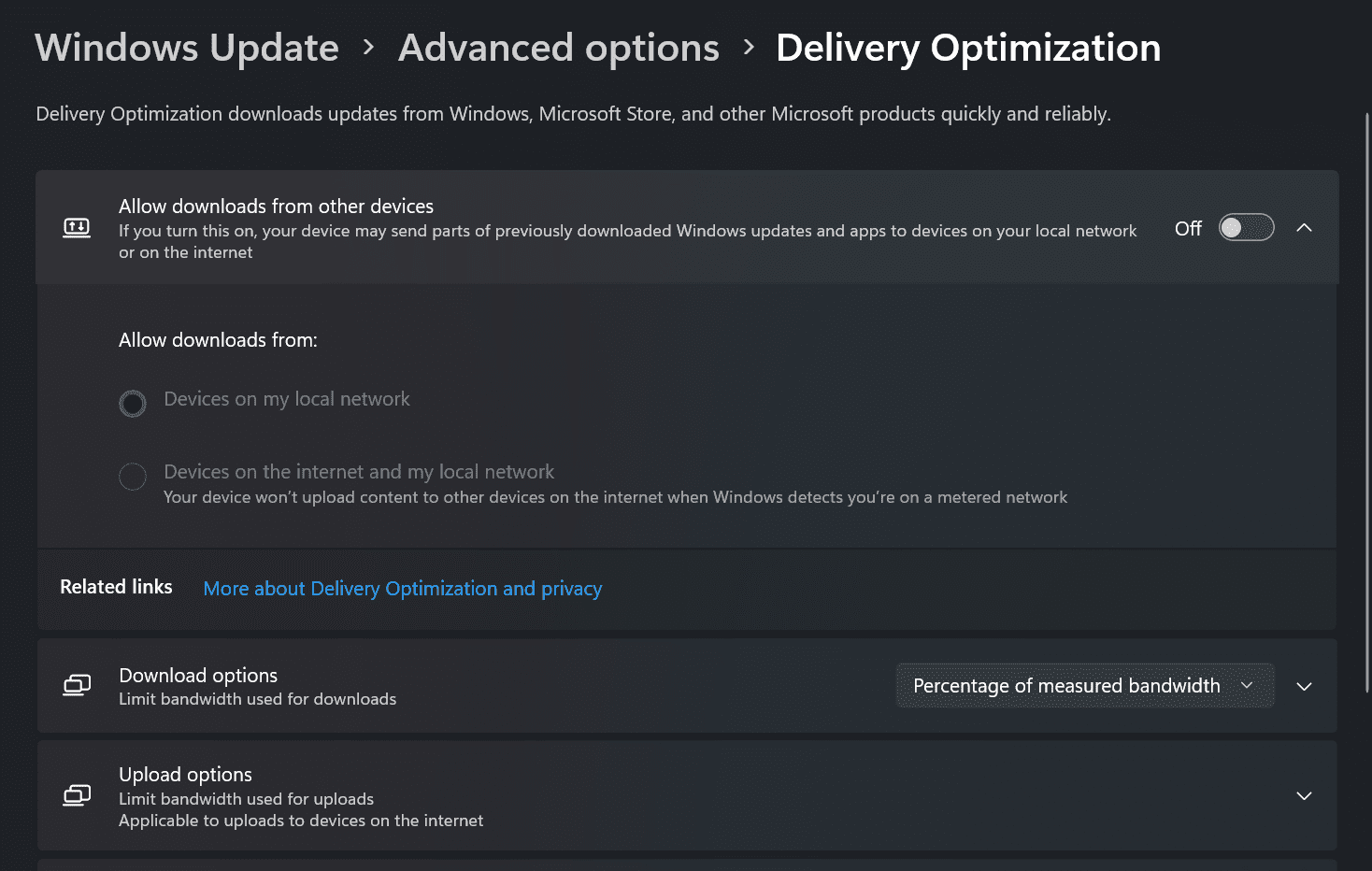
If you want to free up RAM, Disabling Delivery Optimization is simple. You don’t need advanced knowledge.
What Is Delivery Optimization in Windows?
There is a built-in Windows feature that quietly consumes memory. You probably never even knew it was running. And over time, it can affect your PC performance more than you think.
The feature is called Delivery Optimization. It exists in both Windows 10 and Windows 11. And while it sounds helpful, it doesn’t always behave efficiently.
What Is Delivery Optimization in Windows?
Delivery Optimization is a Windows feature designed to reduce bandwidth usage. It allows your computer to share update files with other PCs. Basically, your PC can upload parts of Windows updates to other devices.
According to Microsoft documentation, the goal is to optimize update downloads. Instead of downloading full updates from Microsoft servers every time, devices can share pieces of update files. This sounds efficient in theory.
The feature is located inside Windows Update settings. It runs in background most of the time. And most users don’t even know it exists.
In simple words, Delivery Optimization turns your PC into a mini update server. It helps distribute Windows updates. But sometimes it costs more than it saves.
Why This Windows Feature Secretly Eats Up RAM
Here’s where the problem starts. Some users have reported that Delivery Optimization keeps using memory over time. Even when it’s not actively downloading updates.
A Reddit user named Niff_Naff ran tests and found that the service can eat large amounts of system memory gradually. It doesn’t always release that memory properly. And it just sits there consuming resources.
Memory usage might start small. But over hours or days, it increases. And that can slow down your system noticeably.
This affects both Windows 10 and Windows 11 systems. So it’s not just one version problem. It seems more like service behavior issue.
When your RAM fills up, Windows has to rely more on virtual memory. Virtual memory uses your hard drive or SSD. And that is slower than RAM.
So your PC begins to feel sluggish. Apps open slower. Multitasking becomes less smooth.
If you are wondering why is my Windows 11 PC getting slower over time, this might be one reason.
How RAM Usage Affects PC Performance
Let’s make this simple. RAM is short term memory for your computer. It stores active tasks and running programs.
When RAM usage is high, system struggles. Background processes compete for space. And performance drops.
If a feature keeps eating RAM silently, it reduces available memory for other applications. Your browser slows. Your games lag.
Over time this becomes frustrating. You might think your hardware is outdated. But sometimes it’s just unnecessary services running.
This is why monitoring memory usage is important. Especially on systems with 8GB RAM or less. Lower memory systems feel impact faster.
Delivery Optimization: Useful or Not?
Now, to be fair, Delivery Optimization isn’t completely useless. In large organizations, it can reduce bandwidth costs. Multiple devices can share updates locally.
For enterprise environments, this can be helpful. Especially in offices with many PCs. It reduces repeated downloads.
But for home users? The benefit is often minimal. Especially if you don’t have multiple Windows devices updating together.
If you never take advantage of update sharing, Then keeping it enabled may not give you real benefit. It might only consume resources.
This is why many tech experts suggest disabling it for personal computers.
How Delivery Optimization Works Behind the Scenes
When enabled, your PC can download update parts from:
Yes, even the internet. Unless you restrict it. That means your PC may upload update data too.
It runs as a background service. Called “DoSvc” in system processes. You can see it in Task Manager sometimes.
It stores temporary update files. It manages peer-to-peer transfers. And keeps connection active when needed.
All of this consumes memory. Even when updates are not happening actively. And sometimes it doesn’t scale back properly.
Signs Delivery Optimization Is Slowing Your PC
You might notice:
Restarting temporarily clears memory. But the problem may return. Because service starts again automatically.
If your PC performance improves after reboot, It may be background service issue. Not hardware limitation.
Is It Safe to Turn Off Delivery Optimization?
Yes, for most home users it is safe. Your Windows updates will still work normally. They will download directly from Microsoft servers.
You won’t lose critical functionality. Only peer-to-peer sharing stops. Which many users don’t even use.
For business networks, consult IT admin first. They might rely on it for bandwidth optimization. Enterprise setup is different.
Windows 10 vs Windows 11: Does It Matter?
This issue appears on both operating systems. Users of Windows 10 report similar memory usage. Windows 11 users also notice it.
So upgrading alone may not solve it. It is related to feature behavior. Not version specific only.
Microsoft may improve it in future updates. But until then, disabling is practical solution. Especially if you experience memory issues.
Other Windows Features That Consume RAM
Delivery Optimization is not the only one. Windows has many background services. Some useful, some questionable.
Examples include:
You can manage many of these in Settings. Or through Task Manager Startup tab. Optimizing these improves performance.
If you want to learn about Windows performance tuning, Microsoft’s official support page is helpful: https://support.microsoft.com/windows
How to Check RAM Usage Properly
To monitor memory usage:
Observe usage over time. If memory keeps increasing without heavy tasks, Then background services might be responsible.
You can also check Resource Monitor. It gives more detailed breakdown. Advanced users may prefer it.
Should Microsoft Improve This Feature?
Ideally yes. Optimization feature should not create inefficiency. Memory leaks should not happen.
Software should release unused memory. Especially background services. Otherwise user experience suffers.
Hopefully future updates address this. Until then, manual control is solution. Users must adjust settings themselves.
FAQs
Final Thoughts
Sometimes the feature designed to improve efficiency ends up doing opposite. Delivery Optimization can quietly consume RAM over time. And that impacts PC performance.
For most home users, disabling it makes sense. Especially if you never use update sharing. Freeing up memory always helps.
Your PC should work for you. Not secretly eat resources in background. A few setting tweaks can make big difference.