Last Updated on: 1st March 2026, 06:11 pm
Every time I install Windows 11 on a new PC, I don’t just start working right away. I spend five minutes adjusting a few things first. Because while Windows 11 looks clean and modern out of the box, some default settings are honestly distracting, slightly intrusive, or just unnecessary for everyday users.
1. Move the Start Button Back to the Left
This is always the first thing I fix.
In Windows 10, the Start button lived in the bottom-left corner for years. In Windows 11, Microsoft moved it to the center. Maybe for design reasons. Maybe to look modern. But for many users, it just feels unnatural. Your muscle memory automatically moves to the left. When it’s not there, you pause for a second. And those small pauses add friction over time.
Why This Matters
- Faster navigation
- Less visual searching
- More traditional workflow
- Better consistency
How to Change It
Go to: Settings → Personalization → Taskbar → Taskbar behaviors
Change Taskbar alignment from Center to Left.
Done.
Official Microsoft guide: https://support.microsoft.com/windows/customize-the-taskbar
It’s a tiny adjustment, but it instantly makes Windows feel familiar again.
2. Turn Off Unnecessary Notifications
Notifications are useful. Too many notifications are distracting. Windows 11 sends: Tips and suggestions, App alerts, Promotional hints, Background reminders. And if your PC came with preinstalled software, you may get even more pop-ups. For students, remote workers, and business users, this kills focus.
Why Disable Most Notifications?
- Improves concentration
- Reduces background app activity
- Slightly lowers RAM usage
- Saves battery on laptops
How to Disable Notifications
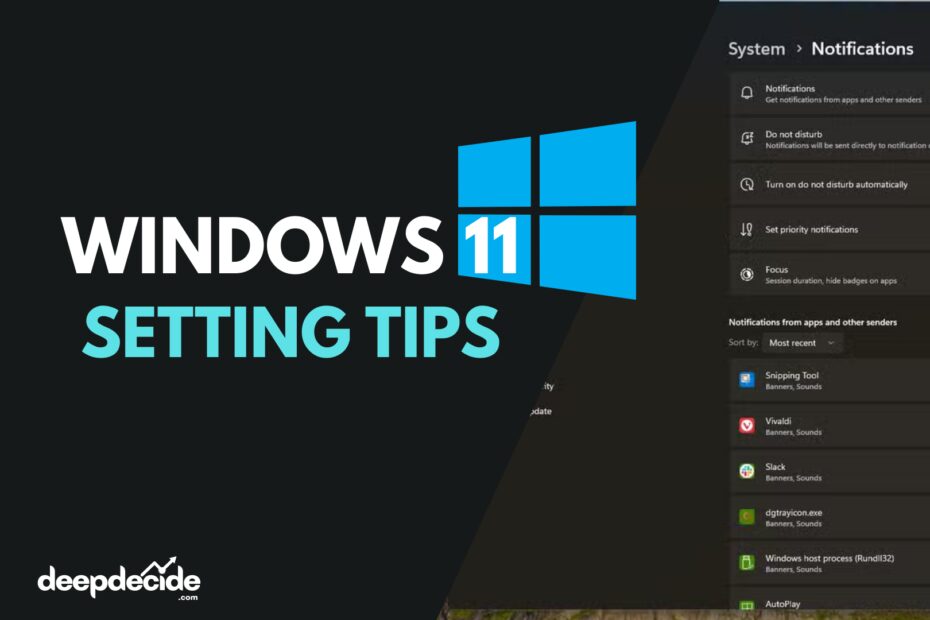
Go to: Settings → System → Notifications
You can turn off everything at once, or scroll down and disable them app by app. I personally keep only: Antivirus alerts, Work communication apps, Calendar notifications. Everything else? Off.
Official help page: https://support.microsoft.com/windows/change-notification-settings
Less noise = better productivity.
3. Turn Off Microsoft Ads and Suggested Content
Yes, Windows 11 includes promotional suggestions. They aren’t flashy ads, but they show: Microsoft 365 trials, Xbox promotions, “Recommended” apps, Suggested settings tips. It feels subtle, but it’s still marketing inside your OS. If you care about privacy and a clean interface, you should disable them.
Step 1: Disable Suggested Content
Go to: Settings → Privacy & Security → General
Turn off: Show me suggested content in Settings, Let apps show me personalized ads.
Microsoft explains its privacy model here: https://privacy.microsoft.com
Step 2: Disable Device Usage Recommendations
Go to: Settings → Personalization → Device Usage
Turn off all categories if you don’t want tailored recommendations.
Step 3: Clean the Lock Screen
If you use Windows Spotlight, disable tips and suggestions under: Settings → Personalization → Lock Screen
After this, Windows feels less pushy and more professional.
4. Change Your Default Browser
Microsoft promotes Microsoft Edge heavily. Edge is actually solid — fast and secure. But if you prefer: Google Chrome, Mozilla Firefox, Brave, Opera — you should set it as default immediately. Otherwise, Windows may keep opening links in Edge.
Why Changing Default Browser Matters
- Sync with your ecosystem
- Access your saved passwords
- Use your favorite extensions
- Maintain workflow consistency
How to Set Default Browser
Go to: Settings → Apps → Default Apps
Select your browser and click Set default. It takes less than a minute. Your browser should match your habits — not Microsoft’s preference.
5. Clean Up the Taskbar
The Windows 11 taskbar comes loaded with extra features: Widgets, Copilot, Chat, Microsoft Store, Task View. If you don’t use them daily, they only add clutter. A minimal taskbar feels faster and cleaner.
How to Remove Unwanted Icons
Go to: Settings → Personalization → Taskbar
Turn off items you don’t need. For many users, disabling Widgets and Copilot alone makes the taskbar feel much simpler. Cleaner UI reduces mental overload. And less clutter improves focus.
Bonus: Enable Dark Mode
This one is personal, but I always enable it. Bright white backgrounds for hours can strain eyes. Especially at night.
How to Turn On Dark Mode
Go to: Settings → Personalization → Colors
Choose Dark under “Choose your mode”. On OLED screens, it can even help battery life slightly. But even on LCD screens, it feels easier on the eyes.
Do These Changes Actually Improve Performance?
They won’t double your FPS. But they do:
- Reduce background distractions
- Minimize unnecessary telemetry prompts
- Lower some background app activity
- Improve perceived system speed
And perceived speed matters a lot. A clean system feels faster.
Who Should Change These Settings?
These tweaks are ideal for:
- Everyday home users
- Students using laptops
- Remote workers
- Small business owners
- Privacy-conscious users
They take less than five minutes total. No technical skills required.
FAQs
Final Thoughts
Windows 11 is powerful and modern. But default settings are not optimized for focus, privacy, or minimalism. With just five small changes, you can: Improve comfort, Reduce distractions, Limit promotional content, Take control of your workflow. And once you make these tweaks, Windows 11 feels less noisy, more responsive, and truly yours.